01
Start with your vehicle.
Sign in to your own driver account and confirm your vehicle connection and assigned truck.
The information you need for the working day, right there in the cab.
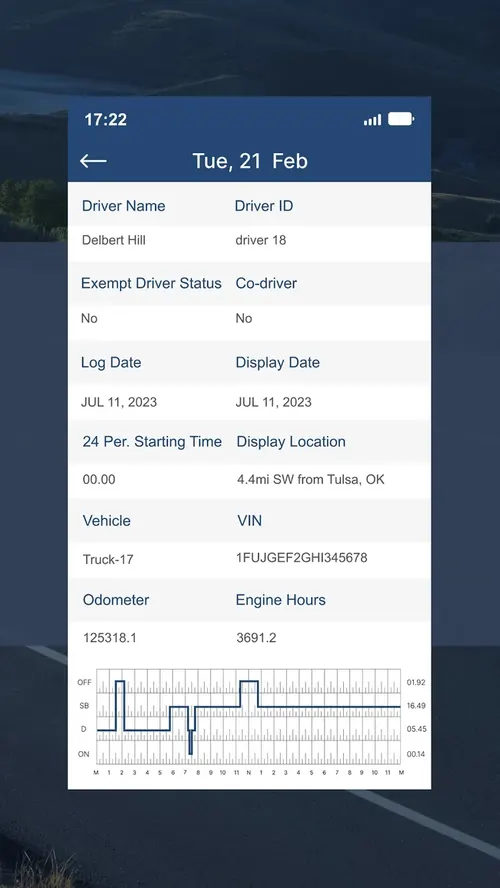
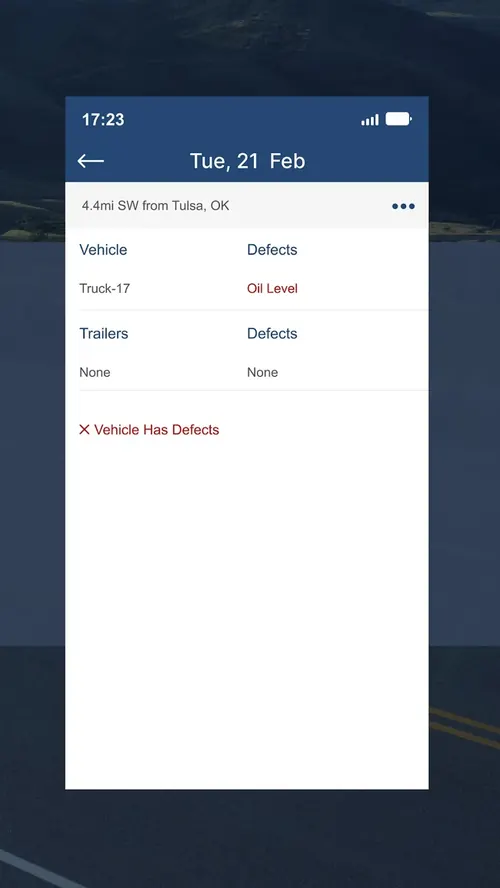
Start connected. Keep your records current. Review before you certify.
Sign in to your own driver account and confirm your vehicle connection and assigned truck.
Review duty status, daily logs, and vehicle inspections throughout your normal workflow.
Check the accuracy of your records and complete the required driver certification.
Use your configured ruleset to review driving time, the work window, break requirements, and the cycle.
The illustration shows a U.S. property-carrying 70-hour / 8-day example. It is not a live clock, legal determination, or product screenshot. Your applicable rules and exceptions may differ.
Talk through your setupExample remaining times · Hours : minutes
The same 24-hour graph inspectors read at the roadside, drawing itself the way the ELD records it: off duty, sleeper, driving, on duty.
Illustrative sample day. Not a record from a real driver.
The True Road Elogs app brings driver details, vehicle records, daily logs, and electronic inspections into the driver’s workflow.
Images are taken from True Road’s public app listing. Ask for a demonstration of the version supplied with your account.
Public True Road Elogs listings are available on the App Store and Google Play. Confirm your device and supported operating-system version with the team.
No. The app works as part of an account, subscription, and compatible hardware configuration. Contact True Road to arrange your setup.
Learn the roadside inspection and data-transfer procedure for the exact app version supplied to you. Keep the required instructions and supporting materials available. Your carrier is responsible for preparing drivers and records.
Contact True Road at 1-866-314-7881. Have your unit number, app version, device information, and any error code ready.
A one-page checklist for the visor, built around what an inspector actually asks for.
FMCSA requires four things to be in the cab with an ELD: the user manual, the data-transfer instruction sheet, the malfunction instruction sheet, and at least eight days of blank paper logs. Most roadside trouble starts when one of them is missing.
Prints on one letter/A4 page. Nothing is sent anywhere.
 Roadside inspection · Cab card
Tell us about your trucks. We’ll help you find the right setup.